
5 Android Accessibility Tools That Can Make Everyday Tasks Easier
Published by PictureThisInk · Powered by MisherTech
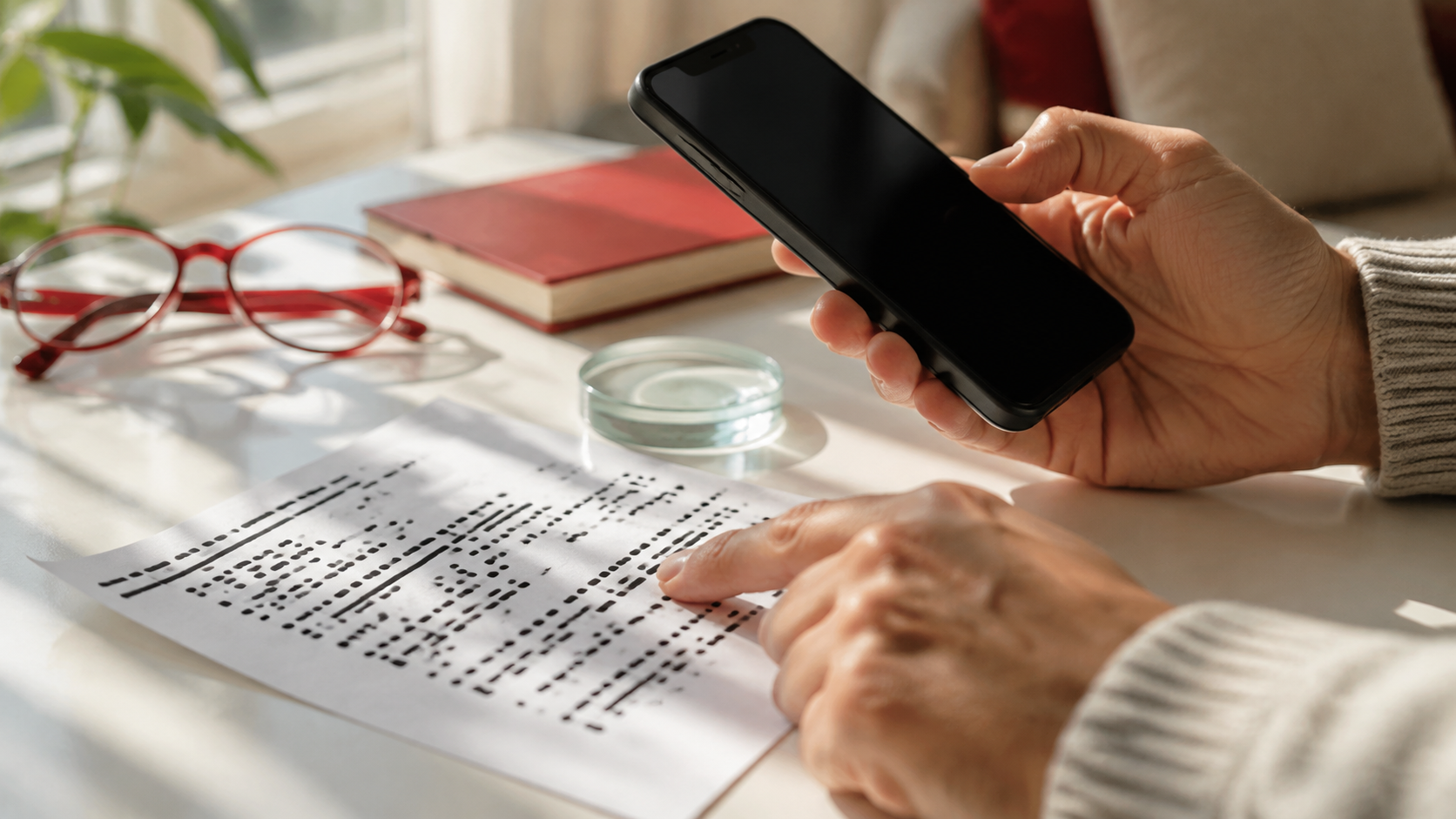
Accessibility technology is often described as a special feature for someone else. In practice, it can make a phone easier to understand, control and trust during the moments when everyday life becomes difficult.
1. Live Caption and Live Transcribe Put Speech on the Screen
Live Caption automatically puts words on the screen for people speaking in audio playing on a device, while Live Transcribe turns nearby speech and sounds into text as they happen. They can help in a noisy room, during a conversation or whenever listening is difficult.
Google’s current Android accessibility overview lists both tools among its captioning options. The practical benefit is immediate: information that once existed only as sound can become something a person can read.
The tools are related but not identical. Live Caption focuses on audio playing on the phone, while Live Transcribe is designed to capture speech and sounds around the user.
2. Sound Notifications Can Flag Important Events
Sound Notifications can help alert a user to selected sounds in the environment, such as a doorbell or a beeping smoke alarm. It gives someone another way to notice an event they did not hear.
This can be useful for people who are deaf or hard of hearing, but the idea is broader: a person wearing headphones, working in another room or living in a noisy space may also benefit from another way to notice an important sound.
It should be treated as an additional alert—not a replacement for certified alarms, emergency systems or personal judgment.
3. Voice Access Makes Hands-Free Control More Practical
Voice Access lets people open apps, move through screens and write messages using spoken commands. Google’s December 2, 2025 accessibility update said enabled users could start Voice Access through Gemini and control the phone without first tapping the screen.
Hands-free control can reduce friction for someone with limited mobility, temporary pain, fatigue or hands occupied by another task. A phone becomes more useful when touch is one option instead of the only option.
4. Magnifier Can Make Small or Distant Details Easier to See
Google’s Magnifier app can use a compatible Pixel phone’s camera to enlarge fine print, craft details and faraway objects such as signs. It can also search for text in the live view and highlight matching words.
That can turn the phone into a practical tool for reading a menu, checking a label or finding a sign. The feature has an important limit: Google says its Magnifier app is available for Pixel 5 and later phones and must be downloaded from Google Play.
The best accessibility features do not demand a new routine; they help a familiar device handle a difficult moment.
5. TalkBack Describes What Is Happening on the Screen
TalkBack is Android’s screen reader. It provides spoken feedback about actions, alerts and notifications, allowing a person to navigate without relying only on sight.
Google has also been adding Gemini-powered descriptions to selected accessibility experiences. Its May 15, 2025 accessibility announcement described AI-assisted image descriptions and follow-up questions designed to provide more context about what appears on a screen.
AI-generated descriptions can be useful, but they can also be incomplete or wrong. They should help a person explore information, not quietly become the only source of truth for safety-critical decisions.
Why It Matters
These tools show what useful technology looks like when it begins with human needs. Captions can make speech visible. Sound alerts can add another way to notice the environment. Voice control can reduce the need for touch. Magnification can bring details closer. A screen reader can make a visual interface understandable through sound.
Availability varies by device, Android version, language, region and installed software. The first step is to open a phone’s Settings app, choose Accessibility and review what the specific device supports.
Technology makes life better when more people can use it in the way that works for them.
Sources
Google Android Accessibility Help — Android accessibility overview, accessed August 24, 2026
Google — 7 ways we’re making Android more accessible, December 2, 2025
Google — New AI and accessibility updates across Android, Chrome and more, May 15, 2025
Comments
No approved comments yet. Be the first.
Related Articles
5 New ChatGPT Updates That Make Everyday Use Easier
 PictureThisInk Editorial· 3 min read
5 Ways the New Caption Rule Should Make TV Easier to Use
PictureThisInk Editorial· 4 min read
5 Ways to Take Back Mental Control in a World That Never Stops Thinking
PictureThisInk Editorial· 1 min read